
NVIDIA RTX PRO 6000 Blackwell
4.3Editor score
96GB DDR7 ECC Memory
PCIe Gen 5 Support
Universal MIG Isolation
This guide compares the top 10 GPUs for Comfyui workflow speed image generation memory capacity and AI model handling to help creators choose the right
Choosing the right GPU for Comfyui is essential for smooth workflows and fast image generation. Modern AI art tools rely heavily on GPU power to render complex nodes and handle large models without lagging.
We evaluated ten graphics cards based on memory capacity architecture and cooling performance. Our comparison focuses on real-world suitability for local AI workloads node stability and compatibility with popular open-source tools.
Each pick highlights key strengths and tradeoffs so you can match hardware to your budget. Prices and availability change frequently so verify current stock before purchasing your next workstation or gaming card.
4.3Editor score

4.7Editor score

4.7Editor score
This side-by-side comparison lists every reviewed graphics card with key specifications to help you quickly identify memory size bandwidth and architecture differences across all ten options.




This workstation card leads the pack with 96GB of VRAM making it ideal for large local language models and complex Comfyui workflows. It scores 4.3 stars and delivers unmatched throughput for professional creators. The Blackwell architecture brings neural shaders and DLSS 4 support for smoother simulation visuals.
We may earn a commission when you buy through this link, at no additional cost to you.
Its 96GB memory handles massive batch processing without swapping to system RAM which is critical for high fidelity image generation. The PCIe Gen 5 interface doubles bandwidth over previous generations speeding up data transfer between CPU and GPU. MIG tech lets you split the card for multi user access while keeping workloads secure.
The price tag is substantial and export rules may apply outside the US so check eligibility before ordering. It comes in bulk OEM packaging meaning you might need extra cables or brackets for home builds. These tradeoffs are acceptable only if you need extreme capacity and reliability for enterprise level AI tasks.
Buy this if you run enterprise scale Comfyui nodes or need to fine tune models locally. It is the best premium GPU for Comfyui when budget is secondary to performance and memory headroom.
The 96GB buffer allows loading large diffusion models directly on GPU without memory errors.
MIG tech enables secure multi user access on one physical card for shared workstations.
We may earn a commission when you buy through this link, at no additional cost to you.
This Intel workstation card offers 24GB memory and PCIe 5.0 connectivity at a competitive price point. It is ISV certified for professional software and supports scaling across multiple GPUs for larger AI workloads. While not as mature as NVIDIA it provides solid value for Comfyui users seeking high VRAM without enterprise costs.
We may earn a commission when you buy through this link, at no additional cost to you.
The Xe2-HPG architecture includes dedicated AI engines for inference and encoding. Its 24GB buffer handles mid range models well and the blower cooling keeps heat contained in multi card setups. PCIe 5.0 ensures future proof bandwidth for upcoming driver improvements and model updates.
Driver maturity can be a hurdle for niche Comfyui nodes that assume CUDA availability. The blower fan may be louder under load than open air coolers. These factors are acceptable if you prioritize VRAM capacity and modern interface standards over legacy software support.
Choose this if you need 24GB VRAM on a budget and are comfortable with Intel software stacks. It is a strong alternative for workstation builds targeting AI inference and multi monitor designs.
24GB of GDDR6 memory allows larger batch sizes without costly upgrades.
Optimized for Linux multi GPU deployments so you can add cards later for more power.
We may earn a commission when you buy through this link, at no additional cost to you.
This card combines 16GB GDDR7 memory with Blackwell architecture for top tier Comfyui performance. It holds 4.7 stars thanks to quiet operation and robust cooling. The PCIe 5.0 interface ensures it handles large data streams efficiently without bottlenecks during generation.
We may earn a commission when you buy through this link, at no additional cost to you.
Its 767 AI TOPS accelerate node processing and DLSS 4 improves visual output quality. The axial tech fan design maintains low noise under load and dual BIOS profiles let you switch between quiet and performance modes easily. Community support is broad since it uses standard CUDA and driver stacks.
The card is not the cheapest option and needs a strong PSU and enough case space for the 2.5 slot design. These downsides are minor compared to the reliability and speed it delivers for daily AI creation work.
Select this for balanced power and silence in home studios. It is the Editor's Choice GPU for Comfyui for users needing reliable 16GB memory and modern features.
New GDDR7 memory boosts bandwidth for faster texture and model loading.
0dB technology stops fans at low loads so you stay focused on work.
We may earn a commission when you buy through this link, at no additional cost to you.
This high clocked RTX 5080 delivers fast rendering for Comfyui with 16GB GDDR7 and WINDFORCE cooling. It scores 4.6 stars and fits users who want raw speed. The PCIe 5.0 link ensures minimal latency during complex node chains and model swaps.
We may earn a commission when you buy through this link, at no additional cost to you.
Its cooling system keeps boost clocks stable even during long generation sessions. The 256 bit bus width provides ample bandwidth for texture heavy workflows. NVIDIA drivers remain consistent for Comfyui nodes requiring specific kernel support.
The card is physically large and draws significant power so case clearance and PSU are critical. These tradeoffs are acceptable when performance is the top priority. You gain faster iteration times at the cost of more heat and space.
Choose this if you prioritize raw throughput and thermal stability. It is a powerful GPU for Comfyui suitable for power users with large cases.
Overclocked boost clocks reduce wait times for high res image rendering.
WINDFORCE fans and thermal pads keep temps low under heavy sustained loads.
We may earn a commission when you buy through this link, at no additional cost to you.
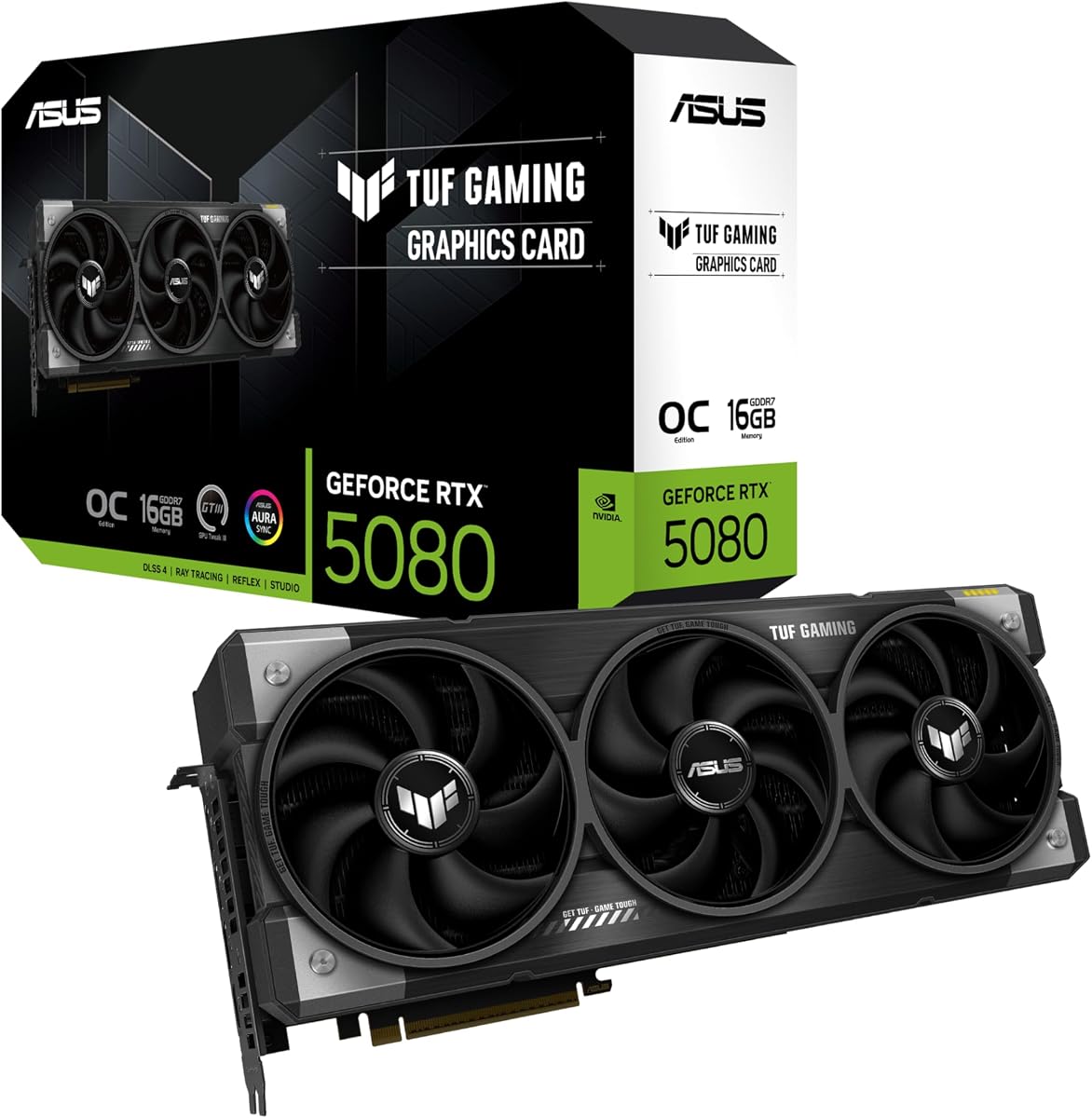
This TUF model emphasizes durability with military grade components and phase-change thermal pads. It runs Comfyui efficiently with 16GB GDDR7 and high clocks. The card scores 4.6 stars for reliability and build quality in demanding environments.
We may earn a commission when you buy through this link, at no additional cost to you.
Its 3.6 slot design maximizes airflow and protects PCB coating guards against moisture. Auto-Extreme manufacturing ensures consistent quality across units. The software suite lets you tune performance and monitor temps in real time.
The card is long and heavy so confirm chassis clearance before purchase. These physical constraints are minor compared to its robust internals. You gain longevity and stable thermal performance over standard gaming models.
Buy this for reliable long term Comfyui operation. It is a durable GPU for Comfyui ideal for workstations that run extended jobs.
Phase-change pads outlast paste so cooling stays consistent over years.
GPU Tweak III allows precise clock and fan tuning for tailored performance.
We may earn a commission when you buy through this link, at no additional cost to you.
This AMD card offers 16GB memory and PCIe 5.0 at a solid price. It scores 4.7 stars for value and cooling. The WINDFORCE system keeps noise low while handling Comfyui tasks effectively for creators avoiding CUDA ecosystems.
We may earn a commission when you buy through this link, at no additional cost to you.
Its server-grade gel improves heat transfer and Hawk Fans reduce turbulence. The 16GB buffer supports mid-range models well and the RGB adds aesthetics. Drivers are improving for open-source AI but some nodes may need tuning.
Compatibility with older Comfyui tools can be inconsistent compared to NVIDIA. These caveats matter if you depend on specific kernels or plugins. For most standard workflows the memory and bandwidth provide strong performance.
Choose this if you prefer AMD and need ample memory. It is a capable GPU for Comfyui for users open to alternative driver stacks.
16GB GDDR6 lets you load larger batches without external swaps.
WINDFORCE cooling keeps thermal noise low for better focus.
We may earn a commission when you buy through this link, at no additional cost to you.
This card is one of the most affordable 16GB options making it great for entry Comfyui. It scores 4.7 stars for efficiency and build. Axial-tech fans ensure quiet performance while 0dB mode stops them at low loads.
We may earn a commission when you buy through this link, at no additional cost to you.
The 16GB buffer supports most local models and the dual BIOS lets you toggle quiet or performance profiles. It fits many cases with its 2.5 slot design and uses standard PCIe interfaces. AMD drivers are improving but may need updates for newer nodes.
Clock speeds are lower than premium cards so rendering takes more time. These limits are acceptable for hobbyists or light production. You gain essential memory and silence at a budget price.
Select this for affordable entry into 16GB VRAM workflows. It is a budget GPU for Comfyui ideal for small form factor builds.
0dB technology ensures fans stay off until thermal limits are reached.
16GB of GDDR6 provides room for standard diffusion models without upgrades.
We may earn a commission when you buy through this link, at no additional cost to you.
This RTX 5070 blends performance and size with 12GB GDDR7 and TUF durability. It scores 4.7 stars for consistent quality. Blackwell architecture accelerates AI nodes and PCIe 5.0 ensures fast data handling.
We may earn a commission when you buy through this link, at no additional cost to you.
Phase-change thermal pads improve heat transfer and Auto-Extreme assembly raises reliability. Its 3.125 slot design fits most cases and GPU Tweak III allows tuning. Drivers remain stable for Comfyui making it a safe choice for regular use.
The 12GB memory can limit large model loads but is enough for standard workflows. You may need to close other apps to free VRAM. These tradeoffs are acceptable for mid range builds needing stability.
Buy this for balanced performance and compact size. It is a mid range GPU for Comfyui suited for daily creative tasks.
New GDDR7 memory offers faster access for real-time texture updates.
TUF components ensure long lifespan for continuous workflow runs.
We may earn a commission when you buy through this link, at no additional cost to you.
This compact card delivers basic Comfyui support with 8GB VRAM and Blackwell features. It scores 4.3 stars for small builds. Axial tech fans keep noise low and 0dB mode ensures silence during light tasks.
We may earn a commission when you buy through this link, at no additional cost to you.
Its 2 slot design fits tight cases and Dual BIOS lets you switch profiles easily. 433 AI TOPS provide entry level acceleration for simple models. The card is easy to install and runs cool in standard enclosures.
8GB memory limits model complexity and batch sizes so expect slower rendering. These limits are acceptable for beginners testing workflows. You gain a low cost entry into GPU acceleration without major system upgrades.
Choose this for small case entry level setups. It is an entry GPU for Comfyui ideal for learning basics.
2 slot design fits small cases where larger cards fail.
433 AI TOPS handle simple inference tasks without CPU load.
We may earn a commission when you buy through this link, at no additional cost to you.
This card offers 12GB memory and compact dual fan design for small builds. It scores 4.4 stars for affordability and flexibility. Factory overclocking boosts clocks out of the box for better performance without setup.
We may earn a commission when you buy through this link, at no additional cost to you.
Its compact size fits mini towers and the VelocityX software allows fine tuning. 12GB memory supports moderate Comfyui workflows well. NVIDIA drivers ensure compatibility with standard open-source tools.
Cooling is basic so sustained loads may thermal throttle sooner than premium models. PCIe 4.0 is slower than Gen 5 but still adequate for current tasks. These tradeoffs are acceptable for cost conscious builders.
Buy this for compact budget builds needing extra memory. It is an entry GPU for Comfyui ideal for small setups.
Pre-overclocked core provides instant performance gain without manual tweaks.
12GB VRAM offers more capacity than standard entry cards for free.
We may earn a commission when you buy through this link, at no additional cost to you.
Selecting the right GPU involves balancing memory capacity bandwidth cooling and budget to match your Comfyui workflows.
VRAM determines how large models and batch sizes you can process without hitting memory limits. For Comfyui aim for at least 12GB to handle modern diffusion models smoothly. If you run large local language models or multi-step node chains consider 16GB or more.
Prioritize higher VRAM even if it means lower clock speeds since bottlenecks in memory often slow workflows more than raw compute.
Bandwidth affects how quickly data moves between GPU cores and memory which impacts rendering speed. GDDR7 models offer higher throughput than GDDR6 so look for newer memory types when available. PCIe 5.0 also helps reduce CPU GPU transfer lag.
Choose cards with wider bus widths and newer memory standards for smoother performance under load.
NVIDIA CUDA cores and Tensor cores remain dominant for Comfyui node compatibility. AMD and Intel are catching up but may require additional driver tweaks for some plugins. Blackwell and Xe2 architectures include dedicated AI engines for faster inference.
If you rely on specific CUDA-based nodes NVIDIA is safer but open-source stacks increasingly support non-NVIDIA GPUs.
Efficient cooling keeps clocks stable during long generation sessions. Look for triple fan designs and vapor chambers or phase-change pads. Blower style coolers save space but may run louder under load.
Ensure your case has enough airflow and clearance to avoid thermal throttling during sustained workloads.
High-end GPUs draw significant power so verify your PSU wattage and connector types. Modern cards use 12VHPWR connectors and may need adapters if your PSU is older. Check total system power headroom before installing.
Choose a PSU with at least 150W headroom over the GPU rating to ensure stable operation.
Large cards may not fit compact cases or small form factor builds. Measure case length and slot count carefully before buying. Slimmer designs improve airflow but might limit cooling capacity.
Balance size with cooling needs to avoid overheating in tight enclosures.
Open-source Comfyui tools rely on regular driver updates for new features. NVIDIA offers the most mature stack but AMD and Intel are improving support. Check community forums for node-specific compatibility notes before investing.
Stay updated with the latest drivers to access performance optimizations and bug fixes.
Models and workflows evolve so choose cards with PCIe 5.0 and ample VRAM to last longer. Avoid cutting-edge memory like GDDR6 if newer standards are available. Consider upgrade paths when building multi GPU setups.
Invest in features that support emerging AI workloads to extend hardware lifespan.
Install your GPU securely in the PCIe slot and connect all power cables firmly. Use the recommended cable types and avoid daisy chaining power connectors to prevent instability. Ensure case airflow paths remain clear to support heat dissipation.
Keep drivers updated through the manufacturer portal or package manager for best compatibility. Use monitoring tools to track temperatures and clock speeds during heavy Comfyui sessions. Adjust fan curves if needed to balance noise and thermal performance.
Dust your system periodically using compressed air to maintain cooling efficiency. Avoid running the card in high humidity environments to protect PCB coatings. Reapply thermal paste every few years if you notice rising idle temperatures under load.
A minimum of 12GB is recommended for smooth operation with modern diffusion models. For large local language models or complex multi-node workflows 16GB or more ensures you avoid memory swapping. Higher capacity allows larger batch sizes and faster iteration without hitting limits.
Yes AMD GPUs work with Comfyui through ROCm or community ports but setup varies by system. Some nodes may require additional flags or updates compared to NVIDIA CUDA. Check compatibility notes before purchasing since support is improving but not universal.
PCIe 5.0 offers higher bandwidth but most current workflows run well on PCIe 4.0. It helps future proof your build and reduces latency in data-heavy tasks. For most users PCIe 4.0 is sufficient if paired with adequate VRAM.
Check the GPU TDP and select a PSU with at least 150W headroom to handle power spikes. Ensure you have the correct power connectors including 12VHPWR if required. Overhead capacity prevents throttling and protects components under sustained load.
High temps often stem from insufficient case airflow or dust buildup on heatsinks. Check fan curves and clean dust from vents and fans using compressed air. Thermal throttling reduces performance so ensure proper mounting and repaste if temps exceed safe limits.
Workstation GPUs offer large VRAM and ECC memory for stability but cost more. Gaming GPUs provide similar raw speed at lower prices for most users. Choose workstation cards only if you need multi-user isolation or enterprise reliability.
Our top picks cover premium workstation power balanced consumer performance and budget entry options. The NVIDIA RTX PRO 6000 Blackwell leads in memory while the ASUS RTX 5060 Ti offers the best value. The ASUS Radeon RX 9060 XT provides affordable 16GB for tight budgets.
Prioritize VRAM and thermal design over raw clock speeds since those impact workflow stability most. Ensure your system supports the card's power and physical needs before buying. Match the GPU to your typical node complexity to avoid unnecessary spending.
Prices and stock change frequently so verify current availability before finalizing orders. Check manufacturer sites for driver updates and compatibility notes for your specific Comfyui setup. Invest in the features you need today while planning for future model growth.