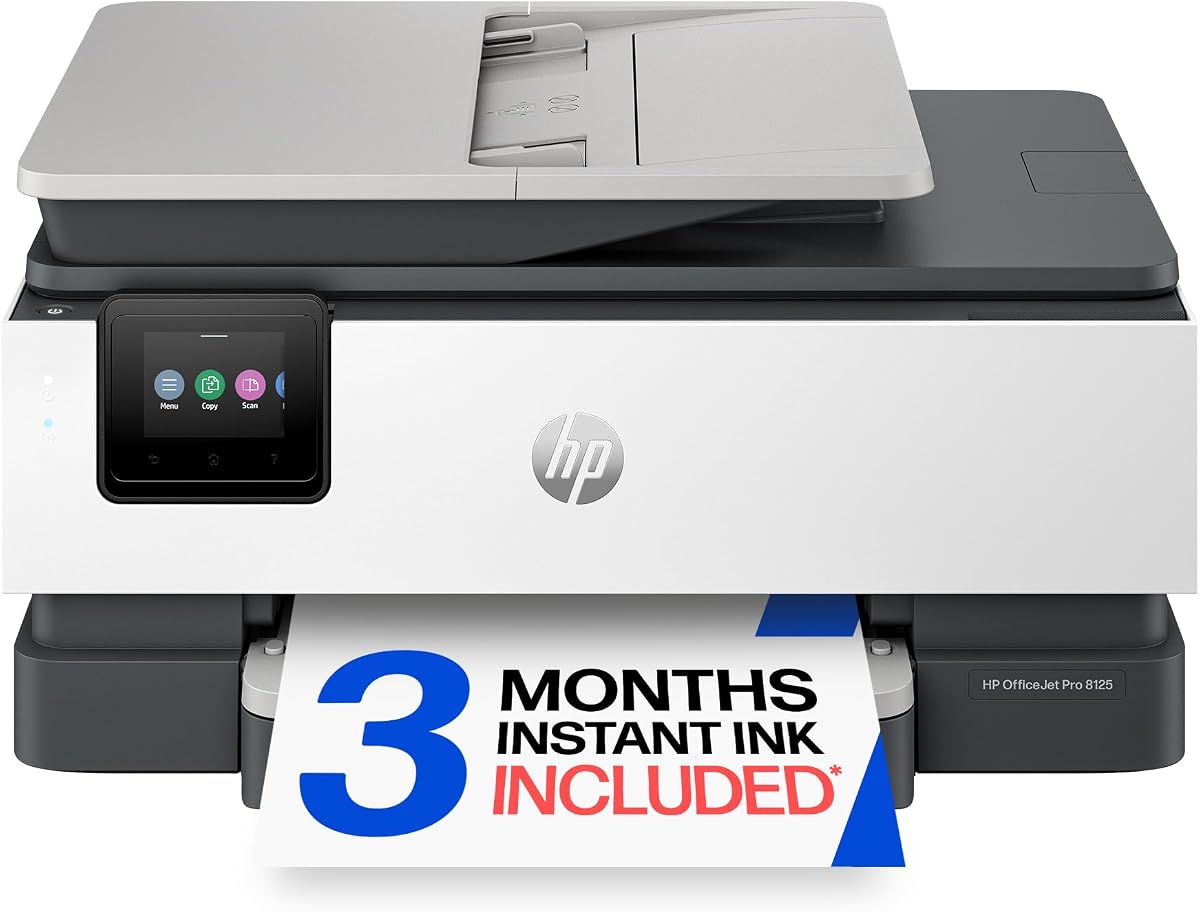
HP OfficeJet Pro 8125
3.9Editor score
HP AI formatting optimization
Dual-band Wi-Fi connectivity
2.7-inch color touchscreen
Finding the right all in one printer for MacBook Air requires careful consideration of compatibility, print quality, and seamless wireless integration. Mac users often need devices that support AirPrint and offer reliable performance for both professional documents and personal photos without frustrating setup hurdles.
We evaluated ten leading models based on their connectivity options, ink efficiency, scanning capabilities, and overall value. Our analysis focuses on how well each printer integrates with macOS ecosystems, ensuring smooth operation whether you are working from a home office or a mobile setup.
Each pick highlights specific strengths and potential trade-offs to guide your decision. While prices fluctuate based on market demand and promotions, these selections represent the most reliable options available. Always verify current pricing and availability before making your final purchase decision.
3.9Editor score

4.3Editor score

3.9Editor score
As an Amazon Associate we earn from qualifying purchases.
This side-by-side comparison highlights the core specifications and unique attributes of each selected model to help you identify the best fit for your specific workflow and budget constraints.



The Epson EcoTank ET-2903 stands out as the top choice for users seeking long-term efficiency. With a rating of 4.3 stars, it delivers exceptional value by including enough ink to last up to three years, significantly reducing ongoing supply costs.
We may earn a commission when you buy through this link, at no additional cost to you.
Its standout feature is the Supertank system, which eliminates the need for frequent cartridge replacements. The refillable tanks are designed with uniquely keyed EcoFit bottles that prevent mix-ups, making maintenance simple and mess-free for home users.
While the initial investment is higher than standard models, the savings on ink over time are substantial. The trade-off is a slightly larger physical footprint, but this is justified by the reduced frequency of supply runs and environmental benefits.
This printer is ideal for households or small offices with high print volumes. Its compatibility with Apple AirPrint ensures seamless integration with MacBook Air devices, making it a reliable choice for both documents and high-resolution photos.
The included ink can last up to three years, meaning you save significantly on replacement cartridges compared to traditional printers.
By reducing cartridge waste, this model contributes to a smaller environmental footprint while maintaining high print quality.
We may earn a commission when you buy through this link, at no additional cost to you.
The HP OfficeJet Pro 8125 is designed for users who need professional-grade performance. With a rating of 3.9 stars, it offers advanced features like HP AI to optimize print formatting, ensuring web pages and emails print cleanly without wasted space.
We may earn a commission when you buy through this link, at no additional cost to you.
Its dual-band Wi-Fi connection provides stable connectivity for MacBook Air users, while the large 2.7-inch touchscreen simplifies navigation. The auto document feeder allows for efficient scanning of multi-page documents, enhancing productivity in home office settings.
However, the printer relies heavily on HP Instant Ink services, which may limit flexibility if you prefer traditional cartridges. The security measures ensure safety but might feel restrictive for users accustomed to open compatibility with third-party ink solutions.
This model is best for professionals prioritizing speed and quality. The 20 ppm black print speed helps complete tasks quickly, and the inclusion of a 3-month Instant Ink trial helps you evaluate the service before committing long-term.
HP AI technology removes unwanted content from web pages, ensuring your prints look professional and reduce paper waste.
Dual-band Wi-Fi automatically resolves connection issues, keeping your MacBook Air connected without manual troubleshooting.
We may earn a commission when you buy through this link, at no additional cost to you.
The Canon PIXMA TR4720 is an excellent entry-level choice for budget-conscious buyers. Rated at 3.9 stars, it offers essential functions like printing, scanning, copying, and faxing in a compact chassis that fits easily into small home office spaces.
We may earn a commission when you buy through this link, at no additional cost to you.
Its unique selling point is the built-in fax capability, which is rare at this price point. The Alexa integration allows for smart reorder notifications, ensuring you never run out of ink unexpectedly, which is a significant convenience for remote users.
Print speeds are slower compared to premium models, making it less suitable for high-volume tasks. However, for occasional document printing and basic photo needs, it delivers adequate quality and value that justifies its lower price tag.
Choose this printer if you need a reliable all-in-one device without breaking the bank. Its Energy Star rating also ensures it consumes minimal power, keeping utility costs low for long-term use in a MacBook Air setup.
Alexa notifies you when ink is low and can even place smart orders automatically, saving you from unexpected shortages.
Its small footprint ensures it fits neatly on a desk or shelf, making it ideal for apartments or small home offices.
We may earn a commission when you buy through this link, at no additional cost to you.
The Canon PIXMA TR7120 offers exceptional versatility for hybrid workers needing reliable home office equipment. With a 4.3-star rating, it excels in print quality through its hybrid ink system, delivering crisp text and vivid colors for both documents and photos.
We may earn a commission when you buy through this link, at no additional cost to you.
Its dual-band Wi-Fi ensures stable connections from anywhere in the home, crucial for remote workers who need consistent performance. The auto document feeder simplifies scanning multi-page documents, streamlining workflows without requiring manual sheet feeding.
The printer lacks a fax function, which might be a limitation for some traditional business needs. Additionally, the paper tray is relatively small, requiring frequent refills for high-volume printing tasks compared to larger office models.
This model is a strong contender for those prioritizing aesthetics and performance. Its stylish design complements modern workspaces, while mobile printing support via AirPrint makes it easy to output files directly from a MacBook Air or iPhone.
The hybrid ink system ensures sharp text and vivid colors, making it ideal for presentations and photo projects alike.
Dual-band Wi-Fi maintains a strong signal, allowing you to print from distant rooms without interruption.
We may earn a commission when you buy through this link, at no additional cost to you.
The Canon PIXMA TS6520 stands out for its intuitive OLED display and compact design. Rated 4.2 stars, it provides clear visual feedback on ink levels and status, making monitoring easy without needing a smartphone app constantly.
We may earn a commission when you buy through this link, at no additional cost to you.
Its automatic duplex printing saves paper and money, which is essential for eco-conscious users. The printer is designed to fit seamlessly into small home office spaces without sacrificing essential scanning and copying capabilities.
One limitation is the lack of an auto document feeder, meaning multi-page scanning requires manual input. This may be inconvenient for users who frequently scan lengthy contracts or reports, though it is negligible for casual home use.
This printer is best for users who prioritize design and simplicity. The mobile app support ensures you can send jobs from your MacBook Air or iOS device effortlessly, while the OLED screen keeps you informed of printer status at a glance.
The OLED display shows ink levels and printer status clearly, reducing the need for checking apps or menus.
A compact design ensures it fits on crowded desks while still offering duplex printing for cost-effective operations.
We may earn a commission when you buy through this link, at no additional cost to you.
The Brother Work Smart 1360 excels at cloud integration, making it perfect for digital-first workflows. With a 3.8 rating, it supports popular apps like Google Drive and Dropbox directly, allowing you to print or scan to cloud storage seamlessly.
We may earn a commission when you buy through this link, at no additional cost to you.
Its 150-sheet paper tray reduces the need for frequent refills, which is helpful for busy home offices. The page gauge feature helps monitor ink usage, ensuring you maintain optimal performance without unexpected interruptions during critical tasks.
Print speeds are average, so it may not be the fastest choice for heavy daily printing. However, its connectivity options and affordability make it a practical choice for users who need reliable access to cloud services alongside standard printing.
Choose this model if cloud access is a priority. The simple setup and reliable wireless performance ensure smooth interaction with MacBook Air systems, while the large tray capacity keeps operations running longer between maintenance intervals.
Print directly to services like Google Drive and Dropbox, streamlining digital storage without complex setup steps.
The 150-sheet tray minimizes refills, ensuring continuous operation during busy periods.
We may earn a commission when you buy through this link, at no additional cost to you.
The HP Envy 6155 is a strong contender for home environments needing vibrant photo prints. Rated 4.2 stars, it features True-to-Screen technology ensuring colors on paper match digital files on your MacBook Air screen accurately.
We may earn a commission when you buy through this link, at no additional cost to you.
Its 2.4-inch touchscreen provides an intuitive interface for navigating settings, while HP AI helps optimize web pages for clean printing. The sustainable design using 60% recycled plastic aligns with eco-conscious consumer values.
Users should note the reliance on Instant Ink services to unlock full value, which might restrict flexibility. Despite this, the photo quality and ease of use make it a favorite for casual users prioritizing visual output over raw speed.
This printer suits families or creatives needing photo quality. The compact footprint fits well in living spaces, and the mobile app integration ensures you can manage prints easily from any connected device.
Ensure colors on paper match what you see on your screen, making it perfect for photo projects and documents.
Made with significant recycled materials, reducing environmental impact without compromising performance.
We may earn a commission when you buy through this link, at no additional cost to you.
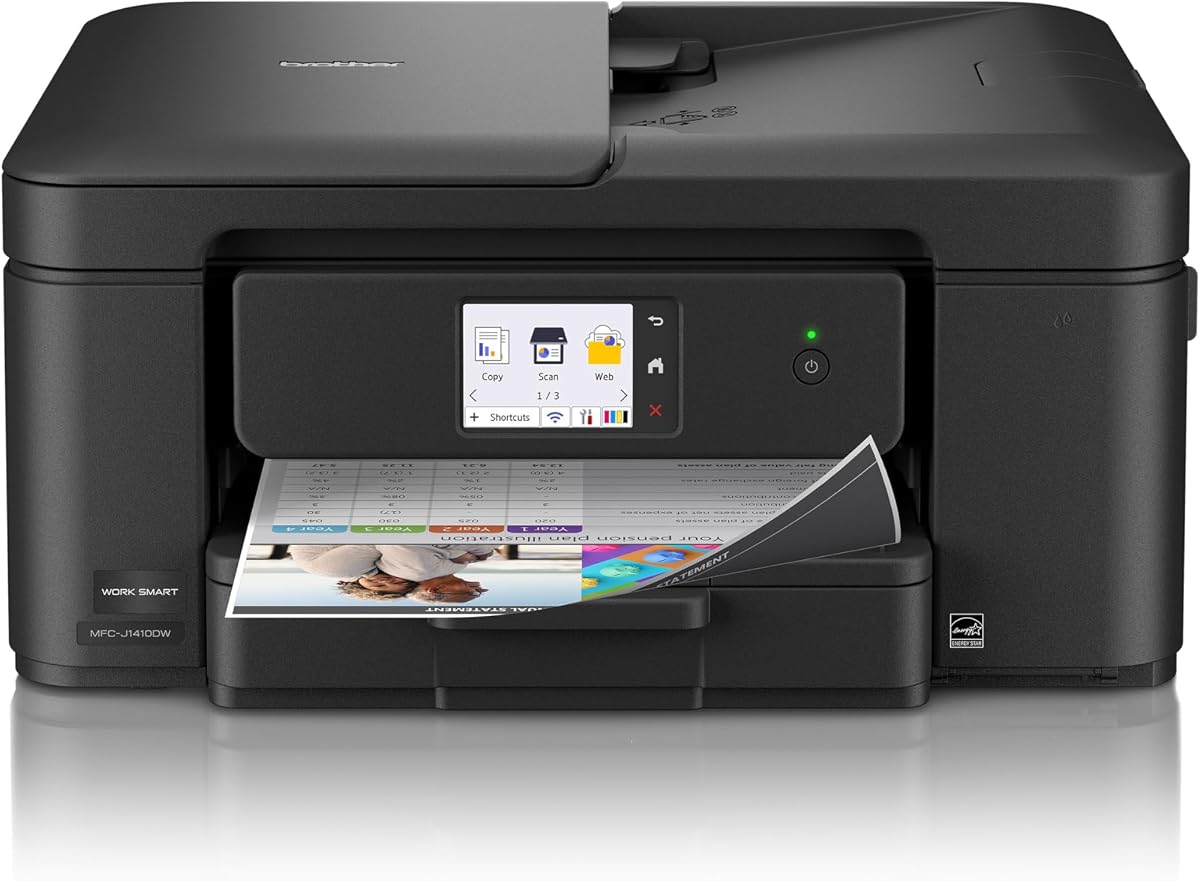
The Brother Work Smart 1410 delivers productivity with its large 2.7-inch touchscreen and fast print speeds. Rated 4.0 stars, it offers a smooth user experience that allows easy navigation of settings and cloud apps directly from the device.
We may earn a commission when you buy through this link, at no additional cost to you.
Its print speed of 16 ppm black ensures documents are handled quickly, making it suitable for small office environments. Cloud integration with services like Dropbox and OneDrive enhances workflow efficiency for digital-first teams.
Brother emphasizes genuine ink, which ensures reliability but may lead to higher costs if third-party options are desired. The subscription trial provides value, but long-term costs should be considered before purchase.
Select this printer for its interface quality and speed. The combination of a large display and cloud readiness makes managing print jobs from a MacBook Air seamless and efficient.
The large touchscreen simplifies navigation, allowing quick access to settings and apps.
With fast speeds and cloud support, this printer streamlines tasks for busy office environments.
We may earn a commission when you buy through this link, at no additional cost to you.
The HP OfficeJet 3830 is notable for its Alexa compatibility, allowing voice-activated printing and management. Rated 4.3 stars, it integrates smart home features that make managing print tasks easier, especially in busy environments.
We may earn a commission when you buy through this link, at no additional cost to you.
Its quiet mode reduces noise, ensuring it does not disturb work or sleep. The inclusion of fax capability is a plus for businesses needing traditional communication methods, adding versatility to the standard print, scan, and copy functions.
While it is an older model, it remains a reliable option for basic needs. Users might find resolution lower than newer models, but for standard office documents, the output remains clear and consistent.
This model is ideal for smart home enthusiasts. The Instant Ink readiness ensures continuous ink supply, while the compact design fits easily into small spaces like desks or counters.
Voice commands simplify printing tasks, reducing manual interaction and improving convenience.
Quiet mode minimizes noise, making it suitable for shared spaces or home offices.
We may earn a commission when you buy through this link, at no additional cost to you.
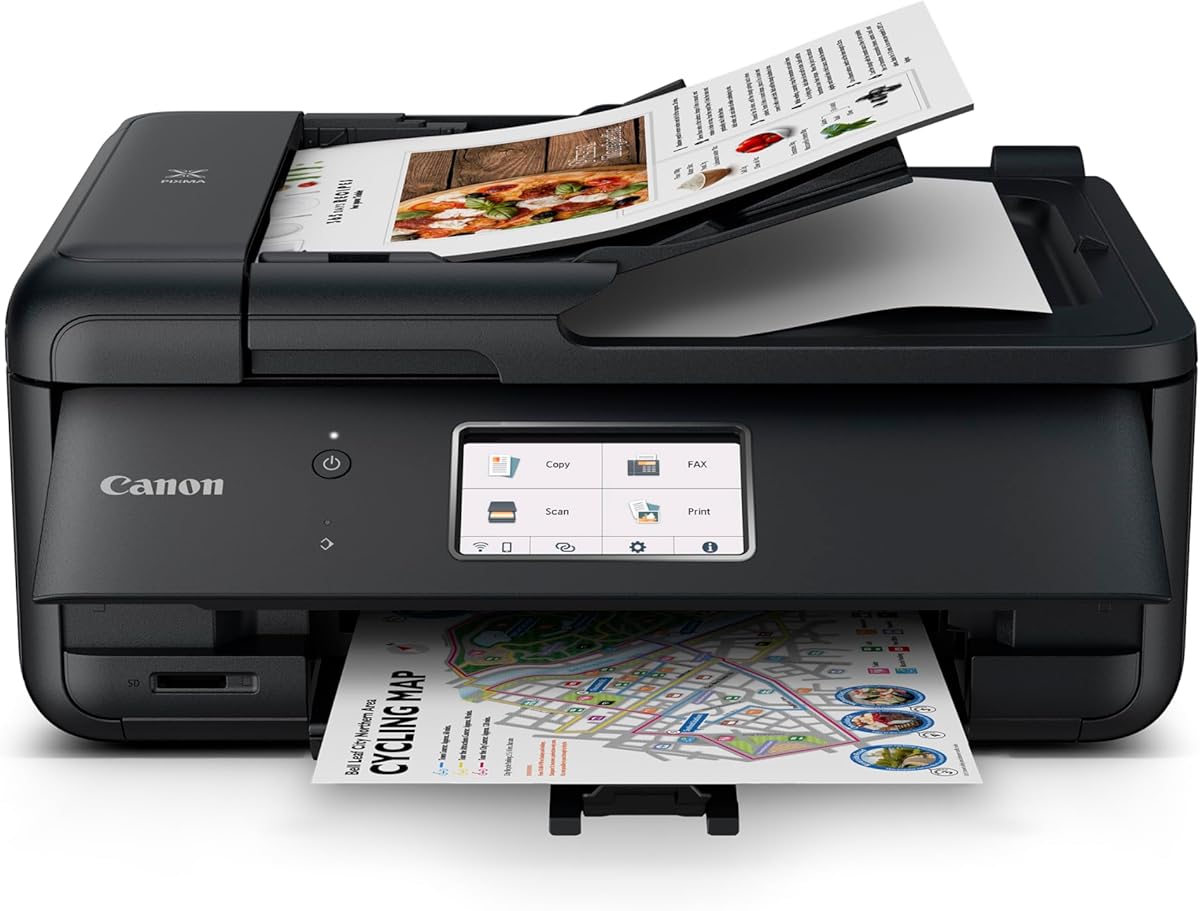
The Canon PIXMA TR8620a offers advanced ink management via Alexa, allowing smart reorders without subscriptions. Rated 4.0 stars, it provides a robust set of features including fax and an auto document feeder for comprehensive home office support.
We may earn a commission when you buy through this link, at no additional cost to you.
Its 200-sheet capacity reduces refill frequency significantly, ensuring uninterrupted printing for busy workflows. The Micro SD slot allows for direct media printing, which is useful for sharing photos or documents stored on memory cards.
The setup process may be slightly complex due to the number of features, but once configured, it offers excellent flexibility. The footprint is larger, so space considerations are important for smaller desks.
Choose this printer for its comprehensive features and smart reorder capabilities. It balances advanced functionality with user-friendly voice commands, making it a versatile tool for demanding home users.
Alexa automatically orders ink when low, ensuring you never run out unexpectedly without manual intervention.
A 200-sheet capacity minimizes refills, supporting heavy workflows with fewer interruptions.
We may earn a commission when you buy through this link, at no additional cost to you.
Selecting the right printer requires evaluating several key factors to ensure seamless integration with your MacBook Air workflow.
Ensure the printer supports AirPrint for direct printing from macOS without installing additional drivers. Most modern models offer dual-band Wi-Fi which helps maintain stable connections even in crowded wireless environments. Bluetooth and USB options provide backups if wireless networks are unstable.
Look for dedicated mobile apps that support iOS and macOS. These apps often include features like remote status monitoring and scanning that enhance usability beyond basic printing.
Print speeds are measured in pages per minute (ppm). For home offices, models with speeds between 15 and 20 ppm black are generally sufficient for standard documents. Color speeds are often slower but should still meet your typical output needs.
Resolution affects photo and document clarity. Look for high DPI settings for photos if that is a priority. For text, ensure the printer offers crisp output that is easy to read without smudging or streaking.
Standard ink cartridges may need frequent replacement, whereas supertank models offer refillable reservoirs that lower long-term costs. Consider the cost per page when comparing different brands and models to determine true value.
Instant Ink subscriptions can offer convenience but lock you into specific usage patterns. Evaluate whether you prefer the flexibility of traditional cartridges or the automated delivery of subscription services.
An all-in-one printer typically includes scanning and copying. An auto document feeder (ADF) simplifies scanning multi-page documents by feeding sheets automatically. Fax capabilities are optional but useful for traditional business needs.
Mobile scanning allows you to send documents directly to cloud services or emails. This feature enhances workflow efficiency by reducing manual steps in document management.
Consider the physical footprint of the printer. Compact models fit well on small desks, while larger units may require dedicated space. The design should match your workspace aesthetic to avoid clutter.
Touchscreen interfaces improve usability by reducing the need to rely on physical buttons. Larger screens often provide more intuitive navigation for complex tasks like scanning or settings adjustments.
Security features such as encryption and firmware updates protect your data from cyber threats. For remote work, ensuring that documents and scanned files remain secure is essential.
Sustainable design features like recycled plastic use and energy-efficient modes help reduce environmental impact. Energy Star ratings indicate low power consumption which lowers electricity costs.
Initial purchase price is important but consider the total cost of ownership. A cheaper printer may have expensive ink costs while a more expensive model with refillable tanks may save money over time.
Balance your budget with the features you need. Avoid paying for advanced capabilities you will not use regularly to maximize value.
A standard warranty covers manufacturing defects for one to three years. Extended warranties can protect against mechanical failures that occur after the initial period.
Access to technical support and replacement parts is crucial for longevity. Check manufacturer reputation for customer service before purchasing.
Begin by installing the official driver or app for your specific printer model on your MacBook Air. Ensure your printer is connected to the same Wi-Fi network as your computer to enable wireless printing. Follow the on-screen prompts to configure AirPrint if applicable.
Regularly clean the printheads using the printer's maintenance menu to prevent clogs. Check ink levels periodically and refill or replace cartridges promptly to avoid print quality issues. Keeping the paper tray free of dust and debris also helps maintain performance.
Schedule firmware updates when prompted to ensure security and performance improvements. Store paper in a dry place to prevent jams caused by humidity. If you notice unusual noises or paper jams, turn off the printer and inspect the paper path for obstructions.
Most modern printers in this list support AirPrint which allows seamless printing from macOS without needing specific drivers. Always check the product description to confirm AirPrint compatibility before purchasing to ensure it works with your MacBook Air.
Supertank models like the Epson EcoTank series generally offer the lowest cost per page due to refillable ink reservoirs. Traditional cartridge models may have lower upfront costs but higher long-term ink expenses.
Yes all models support photo printing. Higher resolution options and borderless printing capabilities ensure vibrant and sharp photo output for personal and professional use.
Several models such as the Canon PIXMA TR8620a and HP OfficeJet 3830 include fax functionality. This is useful if you still need to send traditional fax documents from your home office.
All listed printers support wireless connections via Wi-Fi which is ideal for MacBook Air users. USB connections are also available on most models if you prefer a wired link or network access is unavailable.
HP printers offer Instant Ink subscriptions which automatically deliver ink when levels run low. You can subscribe through the HP Smart app and cancel anytime. It is important to read the terms before signing up to understand the billing cycle.
Restarting your printer and router often resolves connection issues. Ensure your network settings allow device discovery and that the printer's firmware is up to date to maintain stable connectivity with your MacBook Air.
The printers highlighted in this guide offer a range of features tailored to different home office needs. Whether you prioritize long-term ink savings with the Epson EcoTank ET-2903 or advanced features like HP AI with the OfficeJet Pro 8125, there is a model that fits your requirements.
When making your decision, prioritize the factors that matter most to your workflow such as connectivity, speed, and cost efficiency. A printer that integrates seamlessly with your MacBook Air will save time and reduce frustration during daily tasks.
Always verify current pricing and availability before purchasing as costs can change due to promotions or market conditions. Investing in the right printer ensures productivity and quality output for your home office needs for years to come.