
Hearvo USB 3.0 HDMI KVM Switch
4.0Editor score
Supports 4K at 60Hz video
Features four USB 3.0 ports
Includes wired remote switch for convenience
This guide compares the top KVM Switches for multi-monitor setups, high resolutions, and remote access to help you choose the perfect switch for your workspace
KVM Switches allow you to control multiple computers with a single set of peripherals and monitors. They streamline workflows by reducing cable clutter and saving valuable desk space in modern offices and homes.
We evaluated ten leading models based on resolution support, switching speed, port count, and overall build quality. Our analysis covers everything from basic single-monitor units to complex multi-display configurations for professionals.
Each pick highlights specific strengths like budget friendliness, premium features, or specialized remote access capabilities. Please note that product availability and pricing can change frequently on the marketplace.
4.0Editor score

3.9Editor score

4.5Editor score
This side-by-side comparison highlights key specifications across all ten models to help you identify the right fit for your specific computing environment and display requirements.




This KVM switch is designed for users needing high-resolution support across multiple displays. It handles 8K at 60Hz and allows two computers to share three monitors seamlessly.
We may earn a commission when you buy through this link, at no additional cost to you.
The unit features DisplayPort and HDMI inputs with robust USB 3.0 port expansion. You can use both button and desktop controller switching methods for flexibility in setup.
While powerful, it requires specific hardware support from your PCs to drive three screens simultaneously. Cable management is critical to maintain maximum resolution performance here.
Ideal for creative professionals with multi-monitor setups needing high fidelity. It balances premium specs with practical switching controls for demanding workflows.
The device supports 8K at 60Hz resolution ensuring crystal clear visuals for detailed work.
Users can switch via panel buttons or an external controller for better desk organization.
We may earn a commission when you buy through this link, at no additional cost to you.
This HDMI KVM switch offers an affordable way to share one monitor between two computers. It supports 4K resolution and includes useful USB 3.0 ports for peripherals.
We may earn a commission when you buy through this link, at no additional cost to you.
The built-in adaptive EDID ensures stable image transmission without manual configuration. A wired remote switch is included for convenient control without reaching under the desk.
It lacks the advanced features of higher-end models but delivers solid performance for general tasks. Setup is plug and play with broad operating system compatibility.
Perfect for budget-conscious users needing a reliable switch for dual PC setups. It balances cost with essential features like high-resolution video support.
The switch automatically optimizes display settings for smooth transmission between connected computers.
Four USB ports allow sharing of keyboards, mice, and other USB devices easily.
We may earn a commission when you buy through this link, at no additional cost to you.
This DisplayPort KVM switch is built for users needing high refresh rate performance across two monitors. It supports 4K at 144Hz making it great for gaming or fluid work.
We may earn a commission when you buy through this link, at no additional cost to you.
The switch supports extended and copy modes allowing flexible desktop configurations. It includes four USB 3.0 ports and an external controller for easier access.
Setup requires specific port connections on your computers to function correctly. The unit is designed for stability with an external power adapter for reliable performance.
Best suited for gamers or designers needing dual screen flexibility with high refresh rates. It offers a solid balance of performance and practical controls for demanding users.
The switch supports up to 144Hz ensuring smooth motion for gaming or fast workflows.
You can extend your desktop or mirror images across both monitors as needed.
We may earn a commission when you buy through this link, at no additional cost to you.
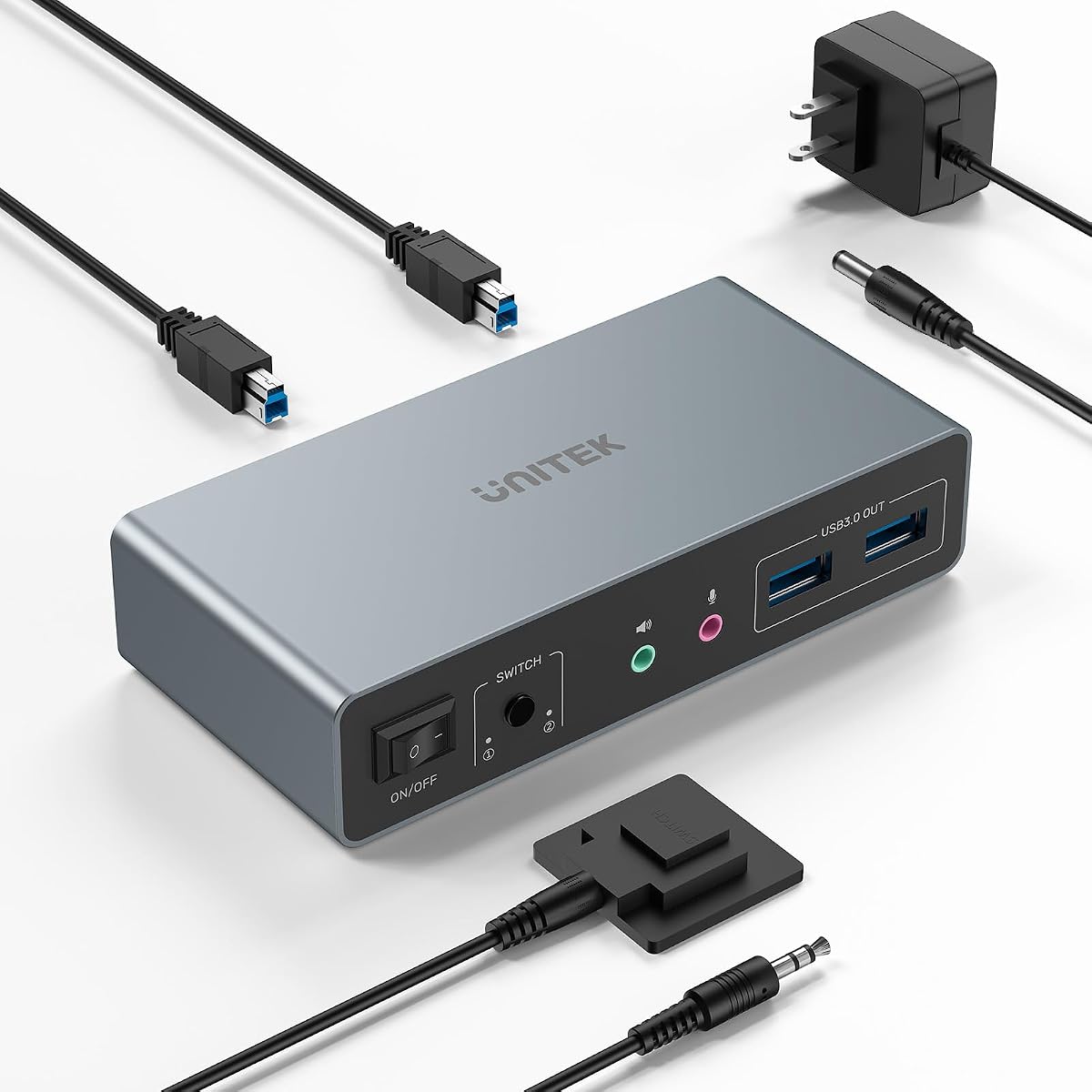
The Unitek KVM switch connects two computers to dual monitors using HDMI or DisplayPort inputs. It offers 4K resolution and includes multiple USB ports for peripherals.
We may earn a commission when you buy through this link, at no additional cost to you.
It features a desktop controller for easy switching and supports microphone and headset ports for audio. The build quality ensures stable performance over long periods.
Users must ensure their computers have the correct ports for simultaneous video output. It does not work with laptops requiring specific host configurations for setup.
Ideal for desktop users needing a reliable dual monitor solution with mixed video inputs. It balances versatility with ease of use for typical office environments.
The switch handles both HDMI and DisplayPort inputs for flexible computer connectivity options.
Built-in mic and headset ports allow for clear voice communication during switches.
We may earn a commission when you buy through this link, at no additional cost to you.
This HDMI KVM switch enables two computers to share three monitors easily. It supports 4K resolution and includes four USB ports for connecting multiple peripherals.
We may earn a commission when you buy through this link, at no additional cost to you.
The package includes a wired controller to keep your workspace tidy. It supports extended and copy modes allowing flexible multi-tasking across screens.
Setup requires ensuring your PCs can output to three screens simultaneously. It is an affordable entry point for complex multi-monitor requirements without high costs.
Great for home office users wanting to expand their visual workspace. It offers significant value with robust connectivity and flexible display options.
The unit allows sharing three monitors between two computers for expanded workspace.
Four USB 3.0 ports support fast data transfer for connected devices.
We may earn a commission when you buy through this link, at no additional cost to you.
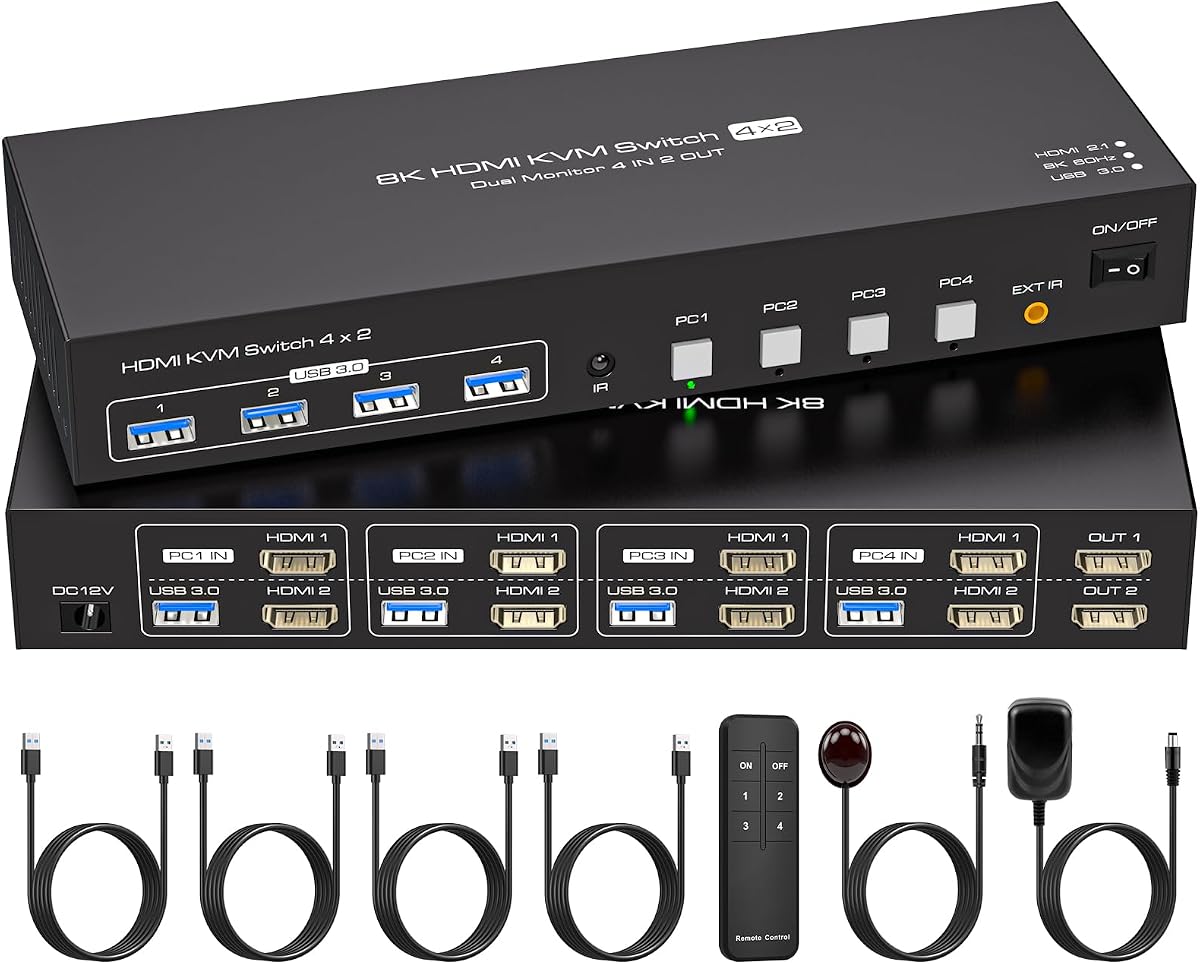
This KVM switch allows four computers to share two monitors simultaneously. It supports 8K resolution and includes EDID emulation to maintain window positions during switches.
We may earn a commission when you buy through this link, at no additional cost to you.
The remote control ensures convenient access even if the unit is hidden. It offers high fidelity video transmission with support for extended and copy display modes.
Each computer needs two HDMI ports for proper operation which may limit older systems. The build ensures stability with external power for consistent performance.
Best for IT professionals or power users managing multiple systems. It offers robust connectivity with features to simplify complex multi-PC environments.
The built-in emulation ensures monitors are recognized instantly without rearranging windows.
Four inputs allow switching between multiple computers with a single button press.
We may earn a commission when you buy through this link, at no additional cost to you.
This KVM device allows you to control computers remotely over Wi-Fi. It features 4K passthrough and a built-in touchscreen for intuitive local control.
We may earn a commission when you buy through this link, at no additional cost to you.
Security is handled by Tailscale encryption for safe data transfer. The device supports two-way audio making it ideal for remote support scenarios.
While powerful, it requires initial network configuration and a higher investment. It offers a unique solution for managing systems from anywhere securely.
Perfect for IT admins needing remote access to machines without physical presence. It combines hardware reliability with modern software features for flexibility.
Access and manage computers remotely via Wi-Fi with secure cloud control.
Tailscale encryption ensures safe data transmission between your devices.
We may earn a commission when you buy through this link, at no additional cost to you.
This HDMI KVM switch connects two computers to dual monitors easily. It supports 4K resolution and includes four USB ports for sharing peripherals.
We may earn a commission when you buy through this link, at no additional cost to you.
The desktop controller allows switching outside your main work area. It is plug and play with broad compatibility across various devices and systems.
Note that it requires specific port connections and external power for stability. It is a solid choice for general use without needing advanced EDID features.
Ideal for standard office setups needing dual screens and USB sharing. It provides reliable performance with essential controls for managing multiple PCs.
The switch allows two computers to share a dual monitor setup simultaneously.
Four USB ports enable efficient sharing of keyboards and drives.
We may earn a commission when you buy through this link, at no additional cost to you.
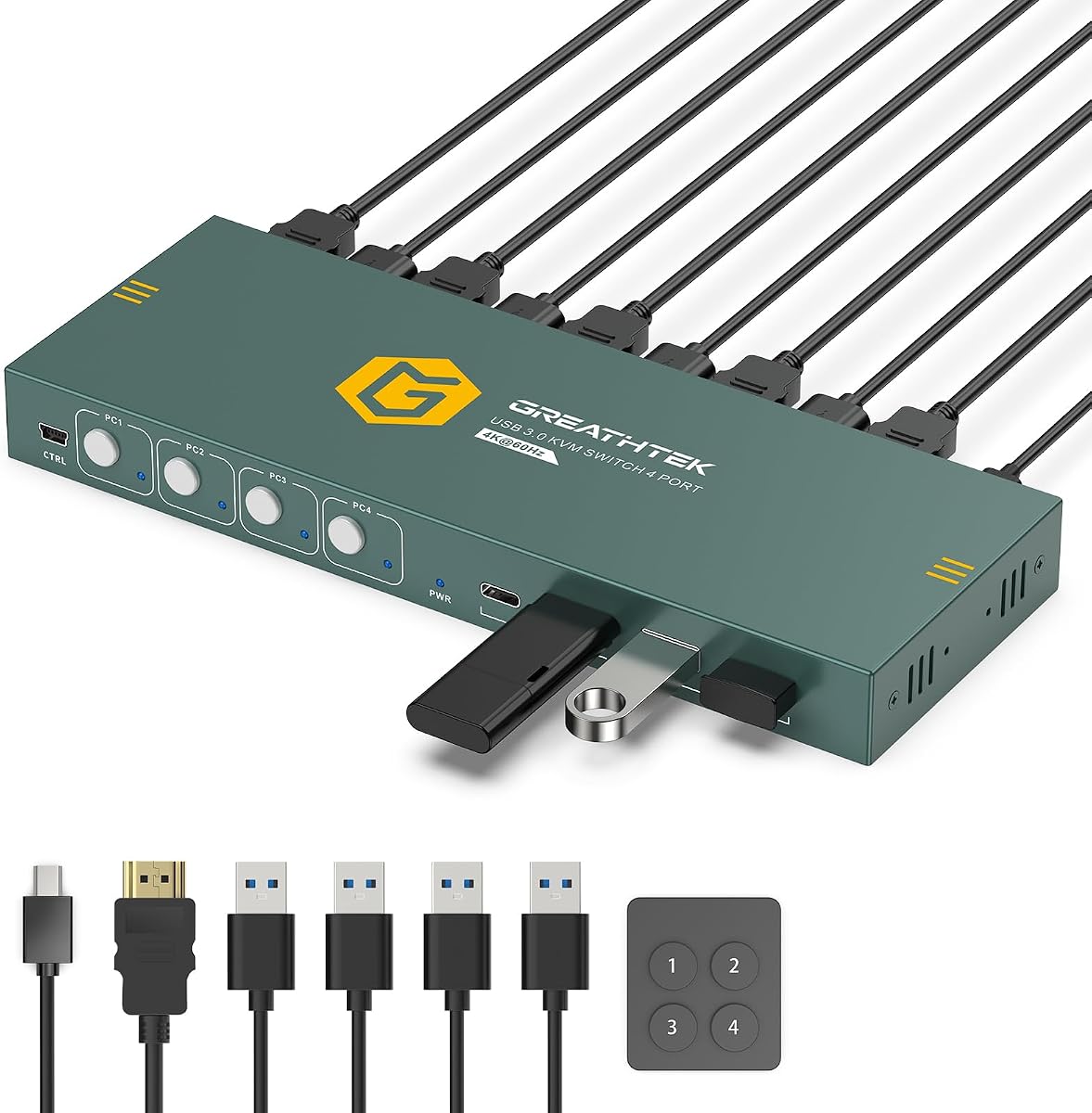
This switch allows you to control four computers with one monitor. It supports 4K resolution and includes four USB ports for sharing peripherals.
We may earn a commission when you buy through this link, at no additional cost to you.
The wired remote allows easy switching without reaching under your desk. Setup is straightforward with plug and play functionality across major systems.
Each computer connects via HDMI and USB cables for full integration. It is an efficient solution for organizing workspaces with multiple PCs.
Best for users managing four machines in a single location. It offers reliable switching with high-quality video support and convenient remote access.
Four inputs allow you to switch between four computers seamlessly.
The included wired remote provides easy access for frequent switching.
We may earn a commission when you buy through this link, at no additional cost to you.
This compact KVM switch allows two computers to share one monitor and keyboard. It supports 4K resolution and includes a wired controller for easy use.
We may earn a commission when you buy through this link, at no additional cost to you.
The device is lightweight and requires no external power for operation. It is designed for simple setups needing basic switching capabilities.
USB ports are limited to two which may restrict peripheral options. It is a practical choice for users needing space-saving solutions on a budget.
Perfect for home users managing two PCs with minimal desk space. It offers reliable performance with essential features for everyday productivity.
Its compact size ensures it fits easily under desks or in tight spaces.
Plug and play functionality means no driver installation is required for use.
We may earn a commission when you buy through this link, at no additional cost to you.
Selecting the right KVM switch involves evaluating your hardware compatibility, resolution needs, and the number of devices you plan to control.
Check if the switch supports the resolution your monitors require such as 4K or 8K. Higher refresh rates like 144Hz are essential for gaming or smooth scrolling.
Always verify the HDMI or DisplayPort version to ensure it matches your graphics card capabilities.
Determine how many computers need to access the peripherals. Most switches handle two inputs but four port models are available for larger setups.
Ensure the unit explicitly supports the number of inputs you plan to connect.
Decide if you need one, two, or three monitors connected. Multi-monitor switches require PCs that can output multiple displays simultaneously.
Verify the switch output matches the physical connections on your computers.
Count how many USB devices need sharing like webcams or drives. Look for USB 3.0 ports for faster data transfer when transferring large files.
Some switches include extra ports for charging or specialized accessories.
Consider if you prefer buttons on the unit, a desktop controller, or remote switching. Desktop controllers help keep clutter hidden under the desk.
Advanced models offer hotkeys or remote access via Wi-Fi for flexibility.
Check if the switch needs an external power adapter for stable USB operation. Units with power adapters prevent device disconnects during high load.
Compact models often rely on bus power which limits peripheral options.
Look for EDID emulation features to maintain display settings when switching computers. This prevents windows from moving unexpectedly during transitions.
Ensure the device supports your operating systems like Windows or Mac.
Metal cases generally offer better heat dissipation and durability than plastic. High-end models often include premium connectors and thicker cables.
Durability is key for units in professional environments used daily.
Start by connecting your computers to the input ports using the correct video cables. Ensure your monitor connects to the output port securely.
Plug in all USB peripherals like keyboards and mice to the USB ports on the switch. Connect the power adapter if your unit requires external power for stability.
Use the switching button or controller to select the active computer. Adjust your display settings to match the active source for optimal visual results.
Most modern switches are compatible with Mac but some have specific requirements. Check if the model supports USB-C or needs adapters for your Mac setup.
Yes provided the switch supports high refresh rates like 144Hz. Ensure it maintains signal integrity to avoid screen tearing during gameplay.
Many models support 4K at 60Hz. Confirm the HDMI or DisplayPort version is sufficient to carry the video signal without degradation.
This often happens due to insufficient power. Using a unit with an external power adapter usually resolves the disconnect issue.
Yes dual but your computers must support three simultaneous displays. Ensure the switch has enough output ports to handle your triple setup.
No most models are plug and play. They work with standard operating systems without installing additional software.
Some switches support mixed HDMI and DisplayPort inputs. Verify the input options match the ports available on your computers.
It helps the switch identify connected displays. This prevents screen flicker and ensures settings remain stable across switches.
We reviewed ten models offering features from budget single-monitor units to premium remote access devices. Each option provides unique solutions for different workspace requirements.
Prioritize your needs such as resolution or monitor count before selecting a model. Ensure your computers support the required outputs for seamless operation.
Remember to check current availability and pricing before buying. Your perfect switch balances performance with affordability for your specific setup.