
Epson Expression Photo HD XP-15000
3.9Editor score
Compact desktop design
Borderless 13×19 prints
AirPrint compatible
Finding the right large format printer for your Mac setup requires careful consideration of connectivity and color management. Whether you are an architect or a photographer, compatibility with macOS is essential for seamless workflow integration without driver headaches.
We evaluated ten top-rated models based on their wireless capabilities, paper handling, and output quality. Our analysis focuses on how well each device integrates with Apple ecosystems while delivering the wide-format results professionals expect from their creative projects.
Each pick highlights specific strengths like speed, ink efficiency, or CAD support. While prices vary significantly across these models, checking current listings ensures you get the best value for your specific needs as market conditions change frequently.
3.9Editor score

4.4Editor score

4.1Editor score
As an Amazon Associate we earn from qualifying purchases.
This side-by-side comparison highlights key specifications across all ten models to help you identify the right fit for your Mac environment and printing volume needs.


The Epson Workforce Pro WF-7840 stands out as a reliable wide-format all-in-one printer designed for productivity. With a rating near 3.9 stars, it appeals to users needing versatile printing without sacrificing speed or reliability in a home or small office setting.
We may earn a commission when you buy through this link, at no additional cost to you.
Its PrecisionCore Heat-Free technology ensures quick output while saving energy, and the 500-sheet capacity minimizes interruptions. Mac users benefit from seamless AirPrint integration, allowing wireless printing directly from laptops or tablets without complex driver configurations.
While it excels at documents, photo quality may not match dedicated photo printers. Some users report initial setup hurdles, but once configured, the wireless connection remains stable for daily workflows.
This model suits small offices needing wide capabilities. It balances cost and function effectively. Consider it if you prioritize document speed over gallery-grade photography.
The Heat-Free technology reduces warm-up times significantly. This allows you to print urgent documents immediately without waiting.
AirPrint support ensures native compatibility with macOS. You can print directly from your device without installing extra software.
We may earn a commission when you buy through this link, at no additional cost to you.
The HP OfficeJet Pro 9730 delivers vibrant color outputs ideal for creative professionals. Its P3 color gamut ensures prints match screen visuals, a key requirement for designers working on Mac systems who demand accuracy.
We may earn a commission when you buy through this link, at no additional cost to you.
Features like the 4.3-inch touchscreen and HP AI help optimize layouts and reduce waste. The dual-band Wi-Fi maintains connectivity even in crowded networks, ensuring your print jobs queue correctly.
However, the Instant Ink subscription may add ongoing costs. Additionally, its max print width is 11×17, which might limit larger poster needs.
Choose this if color fidelity is your priority. It serves well for marketing materials. Check subscription terms before committing to this model.
The P3 gamut offers a wider range than standard RGB. This helps designers achieve true-to-screen results reliably.
HP AI removes unwanted content from web pages. This saves ink and improves the professionalism of printed documents.
We may earn a commission when you buy through this link, at no additional cost to you.
The Canon imagePROGRAF TC-21M offers robust large-format capabilities with a 24-inch width. Rated 4.4 stars, it is a favorite among users needing reliable engineering or architectural prints directly from Macs or cloud sources.
We may earn a commission when you buy through this link, at no additional cost to you.
Its USB flash drive port allows quick prints without connecting to a computer. The touchscreen interface simplifies navigation, while cloud scanning keeps your digital archives organized.
While expensive, the quality justifies the investment for pros. Some features may take time to master. But once set up, it handles complex jobs with ease.
Ideal for engineers needing precise outputs. It balances convenience and quality. Ensure your workspace accommodates its size before purchasing.
USB drive access bypasses the need for drivers. This is ideal for quick prints on the go.
Cloud printing allows remote access to files. You can print documents stored on Drive or Dropbox instantly.
We may earn a commission when you buy through this link, at no additional cost to you.
The Epson EcoTank ET-15000 is designed for high-volume printing without cartridge costs. With a 4.2-star rating, it suits offices needing continuous output and Mac users appreciating its standard network interfaces.
We may earn a commission when you buy through this link, at no additional cost to you.
Its Supertank system holds enough ink for thousands of pages. The 4800×2400 dpi resolution ensures crisp text and clear graphics. This makes it versatile for both documents and basic images.
However, the printer is physically bulky. Initial setup may take longer than smaller units. Once running, it operates quietly and efficiently.
Best for offices needing volume. It lowers long-term costs. Check your desk space before installing this wide format model.
Supertank bottles offer a better cost per page. This reduces the need for frequent cartridge replacements.
Ethernet connectivity ensures stable network printing. This is critical for busy office environments sharing one printer.
We may earn a commission when you buy through this link, at no additional cost to you.
The Epson EcoTank Photo ET-8550 is a powerhouse for creative prints. With a 4.0-star rating, it appeals to photographers needing wide formats without the recurring cost of individual cartridges.
We may earn a commission when you buy through this link, at no additional cost to you.
Its six-ink system delivers deep blacks and vibrant hues. The Claria ET Premium inks support high volume prints. This makes it cost-effective for studios needing frequent output.
However, text printing is slower than office models. The setup involves multiple ink bottles which can be messy. But photo quality is impressive.
Ideal for photo studios. It balances quality and cost. Consider if your workflow focuses on image-heavy projects.
Six inks provide smoother gradients. This reduces banding in large photos significantly.
The ink box lasts up to two years. This means fewer interruptions for ink changes.
We may earn a commission when you buy through this link, at no additional cost to you.
The Epson Expression Photo HD XP-15000 is a compact wide-format option. Rated 3.9 stars, it is perfect for users needing larger prints in limited spaces. Its integration with Mac via AirPrint is seamless and quick.
We may earn a commission when you buy through this link, at no additional cost to you.
It supports borderless prints up to 13×19 inches. The six-color Claria HD inks deliver rich photos. This makes it suitable for creative projects and portfolios.
While compact, it lacks multiple trays. It is best for moderate use. If you need high volume, you might need a heavier unit.
Great for home studios. It offers high quality in a small package. Check dimensions to ensure it fits your desk.
Borderless capability is key for full-bleed photos. This ensures your images look professional without white borders.
Dash Replenishment tracks ink levels automatically. This helps you stay prepared for new cartridges.
We may earn a commission when you buy through this link, at no additional cost to you.
The Brother INKvestment 6960 offers strong business features with wide format support. With a 4.2-star rating, it appeals to offices needing reliable color output and secure network connections from Mac workstations.
We may earn a commission when you buy through this link, at no additional cost to you.
MAXIDRIVE technology ensures high speeds. The ink cartridges have high yield. This reduces replacement frequency. The touchscreen navigation is intuitive for daily tasks.
However, the mobile app experience varies. Setup might require network tweaks for some Macs. Once running, it remains stable.
Best for small business teams. It balances speed and ink cost. Check security needs before installation.
31 ppm speeds keep up with busy days. This reduces wait times during peak hours.
High yield ink lowers cost per page. This makes it economical for high-volume environments.
We may earn a commission when you buy through this link, at no additional cost to you.
The HP DesignJet T210 is tailored for technical drawings and CAD workflows. Rated 4.4 stars, it delivers precise lines and text critical for architects using Mac systems. Its roll media support handles standard 24-inch prints easily.
We may earn a commission when you buy through this link, at no additional cost to you.
HP Click software helps optimize prints and save ink. Gigabit Ethernet ensures fast data transfer for large files. This makes it a robust choice for studios needing speed.
It lacks a default sheet feeder which limits versatility. Driver setup might be specific. But for CAD, the quality is top-notch.
Ideal for architecture firms. It balances speed and accuracy. Check accessory needs for your workflow.
HP JetDesign ink ensures sharp lines. This is critical for technical drawings.
HP Click helps nest PDFs automatically. This saves paper and time for complex jobs.
We may earn a commission when you buy through this link, at no additional cost to you.
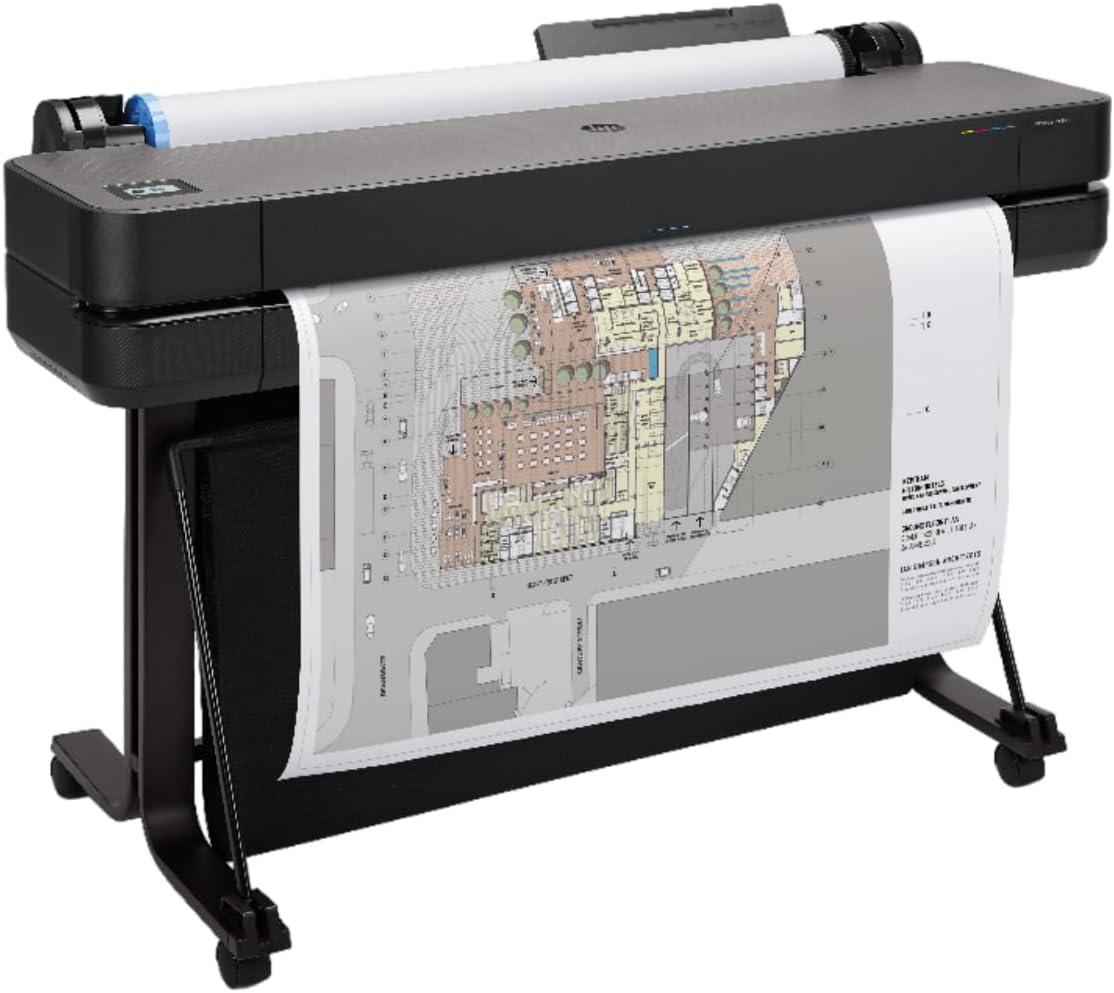
The HP DesignJet T650 offers large-scale 36-inch printing. With a 4.1-star rating, it suits pros needing massive prints and reliable onsite support. Its memory and connectivity handle complex CAD jobs effortlessly.
We may earn a commission when you buy through this link, at no additional cost to you.
The onsite warranty gives peace of mind. Gigabit Ethernet ensures fast data. This is essential for heavy use environments. The software integrates well with Mac workflows.
However, it is expensive and large. It is overkill for casual users. But for pros, it is a solid investment.
Best for large studios. It offers top-tier support. Ensure you have enough room for setup.
36-inch rolls enable large-scale maps. This is vital for construction and landscape work.
Onsite support minimizes downtime. This keeps your projects on schedule without delays.
We may earn a commission when you buy through this link, at no additional cost to you.
The HP DesignJet T630 is a value alternative for 36-inch needs. With a 4.0-star rating, it offers similar output to the T650 but with fewer service perks. It is suited for studios managing high-volume prints.
We may earn a commission when you buy through this link, at no additional cost to you.
The media bin and auto cutter streamline workflows. Gigabit Ethernet handles large files fast. This ensures your Mac can send heavy data without lag.
Lacking onsite warranty is a trade-off. Setup can be tricky. But for cost-conscious pros, it delivers the quality needed.
Ideal for cost-conscious pros. It offers 36-inch capability. Check support needs before buying.
The media bin stores rolls efficiently. This keeps your workspace tidy during long print jobs.
Auto horizontal cutter saves manual cutting. This ensures clean edges for every large print.
We may earn a commission when you buy through this link, at no additional cost to you.
Selecting the right large format printer requires evaluating connectivity, media size, and color accuracy. Here are key factors to consider for your Mac setup.
Ensure the printer supports AirPrint or has native macOS drivers. This avoids compatibility issues with older operating systems. Most modern models support wireless protocols like Wi-Fi and Ethernet seamlessly.
Look for Apple AirPrint compatibility to simplify your workflow without complex installations.
Large format printers range from 13 inches to 36 inches wide. Choose based on your typical job size. Architects need 24 to 36 inches for blueprints while photographers might prefer 13 to 24 inches.
Decide on the largest size you frequently print to avoid needing upgrades later.
Tank systems like EcoTank reduce costs for high volumes. Cartridge systems may be cheaper upfront but cost more over time. Check if the model supports individual ink cartridges for flexibility.
Calculate the cost per page to understand long-term expenses.
Check if the printer supports roll or sheet media. Some have auto-feeders for sheets while others are roll-only. This affects how you load different paper types for jobs.
Choose a model that supports your preferred paper types to save time.
Speed varies by resolution and width. Larger prints take longer. For high-volume offices, look for higher ppm ratings to keep production moving efficiently.
Balance speed needs with quality requirements for your output.
For design work, color gamut is critical. Look for P3 support to match screen colors. Professional models include calibration tools for consistent outputs.
Prioritize color consistency if you need to match printed proofs to digital screens.
Some printers include software like HP Click or Epson Print. These help optimize files before printing. Ensure the software runs on your current macOS version.
Use included tools to manage file sizes and reduce errors.
Larger printers often need maintenance. Check warranty terms. Onsite support is valuable for business continuity. Some models offer extended plans for critical workflows.
Secure a warranty that matches your business needs.
Connect the printer via USB or wireless network and install the latest drivers from the manufacturer. For Mac users, System Preferences usually handles detection automatically if supported.
Regular cleaning of the printhead is vital for large format units. Use manufacturer utilities to run cleaning cycles and prevent clogs. This keeps output sharp over time.
Store media in a dry, cool place to avoid curling or humidity damage. Load paper carefully to avoid jams. Check alignment before sending large jobs.
Most modern large format printers support current macOS versions including Monterey and Ventura. Always check the manufacturer support page for the latest driver compatibility to ensure smooth wireless setup.
The HP DesignJet T210 or T650 are ideal for CAD due to their precise line quality and large width options. They handle vector files efficiently and support standard roll sizes used in engineering.
Yes, models like the Epson Expression Photo HD XP-15000 support borderless prints up to 13×19 inches. You just need to ensure AirPrint is enabled and your app supports the paper size.
Go to System Preferences and Printers & Scanners. Click Add Printer and select your wireless device from the list. Ensure both Mac and printer are on the same Wi-Fi network first.
Yes, tank systems offer a lower cost per page and longer run times. This makes them ideal for offices or studios printing large volumes without frequent refills.
Some models like the HP DesignJet T210 include automatic cutters. Others may require manual trimming. Check the media handling specs before purchase if you need automated cutting.
Most support various finishes including matte, glossy, and cardstock. Adjust your print settings in the driver to match the paper type for best results.
Check the print queue in System Preferences. Cancel the stalled job and restart the printer. Ensure your macOS drivers are up to date.
The Epson Workforce Pro WF-7840 and Canon imagePROGRAF TC-21M offer strong all-in-one solutions for professionals. For dedicated CAD, the HP DesignJet T210 and T650 excel in precision and scale.
Prioritize connectivity and ink costs when choosing. A printer that integrates well with your Mac workflow saves time and frustration over the long term.
Always check current listings for pricing and bundle deals as these models vary. This ensures you get the best value for your specific creative needs.