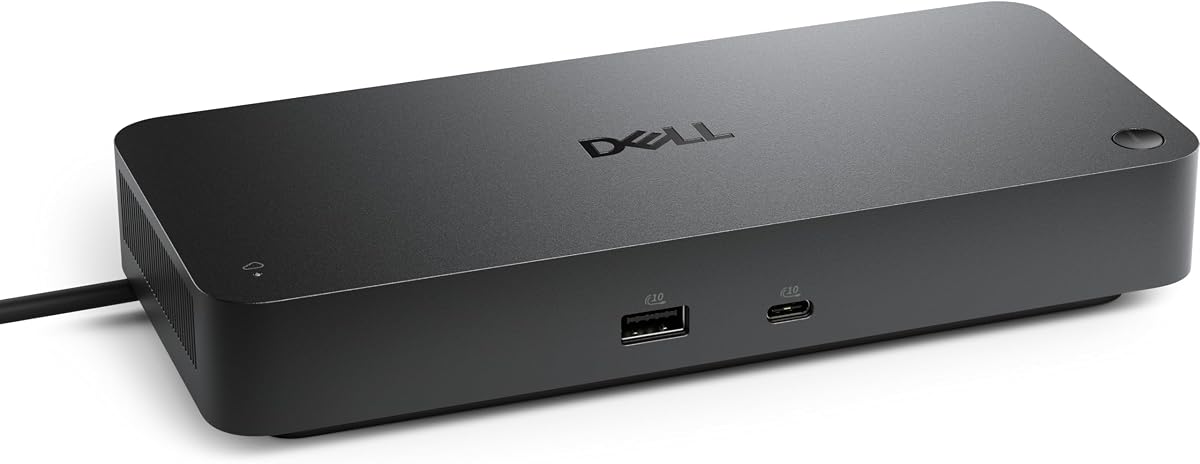
Dell Pro Thunderbolt 4 Smart Dock SD25TB4
4.2Editor score
Thunderbolt 4 dual data ports
Up to 130W USB-C charging
Remote Wi-Fi management support
This guide compares the top docking stations for Dell Pro 14 Plus laptops, evaluating connectivity, power delivery, display support, and manageability for
Finding the right docking station for your Dell Pro 14 Plus is essential for maximizing productivity and connectivity in modern work environments. These devices transform your laptop into a full desktop experience by providing multiple ports and display outputs. A quality dock ensures seamless integration with peripherals while maintaining fast data transfer speeds and reliable power delivery for your system.
We evaluated ten leading docking solutions based on their compatibility, port variety, power output, and manageability features. Our comparison focuses on models that support the specific requirements of Dell Pro series machines, including high-wattage charging and multi-monitor setups. Each product was assessed for build quality, sustainability efforts, and the convenience of included accessories for immediate setup.
Each pick in this list highlights specific strengths such as Thunderbolt speed, bundle completeness, or enterprise management tools. We provide detailed breakdowns of ports, video capabilities, and warranty coverage to help you match a dock to your workflow needs. Please note that product availability and pricing may change frequently so check current listings before purchasing.
4.2Editor score

4.5Editor score
4.4Editor score
The following table presents a side-by-side overview of the top ten docking stations evaluated for the Dell Pro 14 Plus. It highlights key specifications like power output, video support, and unique features to help you quickly identify the model that fits your specific workflow requirements and budget constraints.


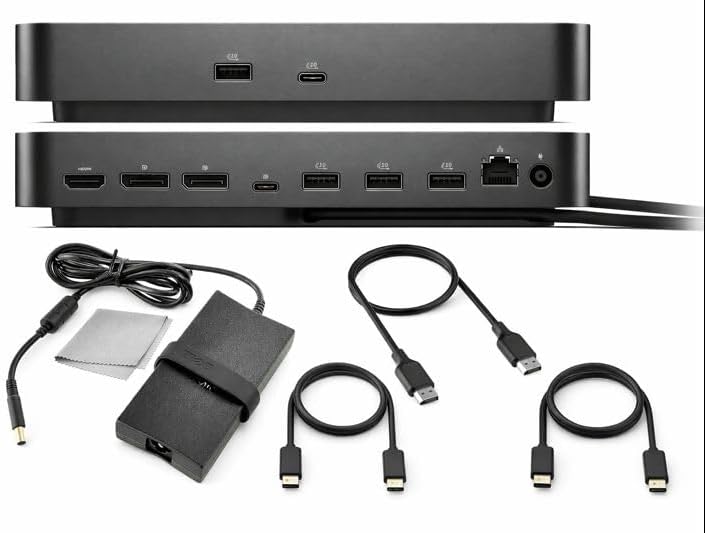


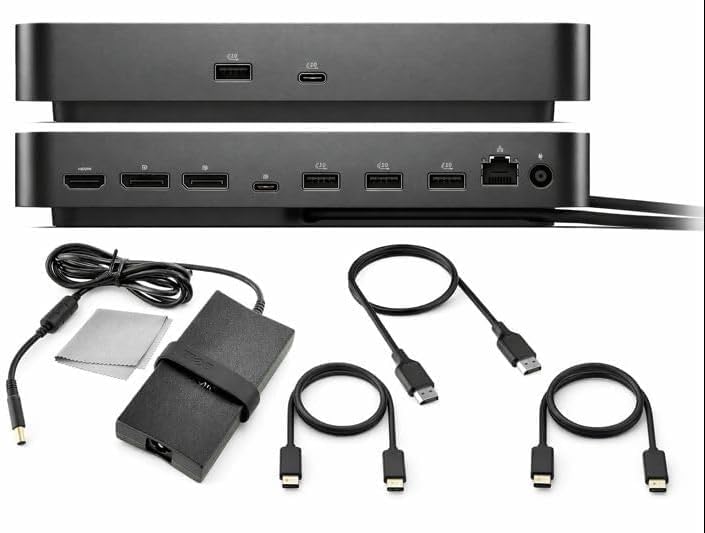

The Dell Pro Laptop Docking Station WD25 stands out as a top choice for professionals seeking reliable connectivity. It offers robust power delivery and strong sustainability credentials that appeal to modern enterprise and personal workflows.
We may earn a commission when you buy through this link, at no additional cost to you.
This dock supports up to 100W of power which ensures your laptop remains charged during heavy workloads. It features an ambidextrous USB-C cable that can be routed left or right for a cleaner desk setup. Additionally it supports up to four high-resolution displays for expanded multitasking capabilities.
While it offers extensive features the cable management might require initial adjustment to find the optimal route. The robust USB-C connector helps with durability over time but users should ensure proper alignment when plugging in.
This dock is ideal for users who prioritize reliable power and multi-monitor support in a professional setting. It balances modern manageability with thoughtful design to keep your workspace organized and efficient.
The 100W output ensures your main system and connected accessories stay powered without extra adapters.
Constructed with at least 65% postconsumer recycled materials and packaged with renewable packaging for sustainability.
We may earn a commission when you buy through this link, at no additional cost to you.
The Dell Pro Smart Dock SD25 is engineered for businesses needing centralized control over docking hardware. It introduces remote management capabilities that simplify IT operations and enhance security for sensitive data.
We may earn a commission when you buy through this link, at no additional cost to you.
You can manage docks without end-user presence using the Dell Device Management Console which configures and updates over Wi-Fi. Enterprise-grade WPA-3 encryption protects data while hardware-based encryption safeguards sensitive information. Updates can be scheduled during off-hours to eliminate user interruptions.
IT teams may find the remote configuration requires initial setup of the management console and network policies. The hardware encryption features are robust but may add complexity for non-enterprise users.
This dock is best for organizations prioritizing security and fleet management. It ensures compliance and reduces maintenance efforts while keeping users productive without disruption.
Configures deploys and updates smart docks over Wi-Fi without needing physical access to the device.
Tamper-resistant hardware-based encryption keeps your sensitive data safe from unauthorized access.
We may earn a commission when you buy through this link, at no additional cost to you.
The Dell Pro Thunderbolt 4 Smart Dock SD25TB4 delivers top-tier connectivity for demanding workflows like video editing or data analysis. It supports high-wattage charging and multiple high-resolution displays simultaneously.
We may earn a commission when you buy through this link, at no additional cost to you.
It provides up to 130W for Dell laptops and 96W for others ensuring efficient power delivery. Dual Thunderbolt 4 ports allow daisy-chaining up to six devices while supporting dual 4K video. Business security features like DMA protection and secure enclosure protect your system data.
The advanced features may require compatible hardware to fully utilize Thunderbolt speeds and 4K support. Users need to ensure their laptops support the specific power and video protocols for optimal performance.
This dock is perfect for professionals requiring maximum bandwidth and screen real estate. It combines powerful charging with enterprise security for a versatile and protected workspace.
Supports up to four 4K monitors via HDMI 2.1 DP 1.4 USB-C and Thunderbolt 4 for expansive workflows.
Includes WPA3 encryption PXE boot MAC filtering and DMA protection for secure enterprise use.
We may earn a commission when you buy through this link, at no additional cost to you.
The Anker Prime Docking Station offers extensive connectivity with a 14-in-1 design suitable for diverse devices. It provides robust charging and fast data transfer for various professional and personal needs.
We may earn a commission when you buy through this link, at no additional cost to you.
This station delivers 160W total output capable of charging up to four devices simultaneously. It supports data speeds up to 10Gbps and dual 4K displays for multitasking. The versatile ports manage data flow efficiently across multiple peripherals.
macOS users may find external monitors mirror rather than extend due to compatibility limitations. Linux support is not available which restricts usage for some open-source environments.
This dock is ideal for users needing a wide array of ports in one compact unit. It offers strong value with flexible connectivity options for mixed device setups.
Delivers 160W total output to charge multiple devices simultaneously without sacrificing performance.
Efficiently manage data across multiple devices with speeds up to 10Gbps and versatile ports.
We may earn a commission when you buy through this link, at no additional cost to you.
The Dell Pro Dock WD25 Universal Docking Station Bundle provides an all-in-one solution with essential accessories included. It ensures you have everything needed for instant multi-monitor connectivity right out of the box.
We may earn a commission when you buy through this link, at no additional cost to you.
It comes with a powerful 100W adapter ensuring reliable performance for connected devices and monitors. Premium HDMI USB-C and DisplayPort cables are included along with a microfiber cleaning cloth. The bundle focuses on complete connectivity without requiring extra purchases.
While the bundle is convenient users should verify that the included cables match their specific monitor requirements. The rating suggests checking for compatibility notes with specific laptop models before purchase.
This bundle suits buyers who want a ready-to-use setup without sourcing separate cables. It simplifies the transition to a dual-monitor professional environment.
Comes fully equipped with the Dell WD25 Dock adapter and all necessary cables.
Includes a premium microfiber cloth to keep screens and laptops dust-free and spotless.
We may earn a commission when you buy through this link, at no additional cost to you.
The Dell Pro Dock WD25Z offers high power capabilities suitable for demanding systems requiring reliable charging. It maintains a clean product identity with a strong rating indicating quality and performance.
We may earn a commission when you buy through this link, at no additional cost to you.
It supports up to 180W power which ensures adequate output for laptops and peripherals. The manufacturer number DELL provides clear identification for compatibility checks. Its design focuses on delivering strong power delivery efficiently.
Specific feature lists are concise so users should verify port details before purchase. The compact design helps save desk space while delivering high power output.
This dock is suitable for users prioritizing high wattage delivery and reliable branding. It ensures your system stays charged efficiently during intensive tasks.
Provides substantial power output to handle demanding laptops and peripherals effectively.
High customer rating reflects satisfaction with its performance and reliability.
We may earn a commission when you buy through this link, at no additional cost to you.
The Dell Pro Dock WD25 USB-C Docking Station offers reliable connectivity with a solid warranty coverage. It provides essential ports for data and video while ensuring long-term reliability for your setup.
We may earn a commission when you buy through this link, at no additional cost to you.
It delivers up to 100W power and includes four USB-A 3.2 Gen 2 ports plus one USB-C port for fast data. The 2.5GbE Ethernet port ensures stable network connections. The 3 Year Warranty provides peace of mind for long-term use.
The price point may be higher than basic docks but the warranty adds value over time. Ensure your monitor requirements match the dual 4K support capabilities.
This dock is ideal for users valuing long-term support and port flexibility. It balances power delivery with network speed for a stable workspace.
Expand your workspace with HDMI DisplayPort and USB-C multi-function ports for multiple displays.
Includes multiple USB-A and USB-C ports for fast data transfer and powering peripherals.
We may earn a commission when you buy through this link, at no additional cost to you.
The Dell Pro Smart Dock SD25 Bundle offers a complete setup solution with all necessary accessories included. It supports high-wattage charging and multiple displays for an efficient multi-tasking environment.
We may earn a commission when you buy through this link, at no additional cost to you.
It includes HDMI USB-C and DisplayPort cables along with a cleaning cloth for immediate setup. The 130W charging ensures your laptop stays powered during intensive tasks. Users report perfect ratings reflecting satisfaction with the package.
Premium pricing may apply compared to standalone units but the included accessories add value. Verify cable lengths to ensure they reach your specific desk layout comfortably.
This bundle is best for users seeking a ready-to-use professional setup. It combines high power with convenience for a streamlined workspace.
Get everything you need including cables and cleaning cloth to set up your workspace instantly.
Supports up to four displays simultaneously for professional multitasking workflows.
We may earn a commission when you buy through this link, at no additional cost to you.
The WD25 Dell Pro Dock offers high user satisfaction with reliable performance and strong warranty coverage. It provides essential connectivity for daily work with a focus on durability.
We may earn a commission when you buy through this link, at no additional cost to you.
It supports up to 100W power delivery for Dell laptops and 96W for others. The built-in 2.5GbE Ethernet ensures fast stable internet connections. It includes multiple USB-A 3.2 Gen 2 ports for peripheral connectivity.
Detailed specs are minimal so confirm compatibility with your specific monitors and peripherals before purchase. The high rating suggests strong reliability for long-term daily use.
This dock is ideal for users prioritizing reliability and warranty protection. It ensures your system stays connected and powered efficiently.
Enhance your workspace with versatile connection options including HDMI DisplayPort and USB-C.
Stay connected with the built-in 2.5GbE Ethernet port for secure internet connections.
We may earn a commission when you buy through this link, at no additional cost to you.
The Dell Pro Dock WD25 Docking Station provides a durable compact design that fits well in smaller workspaces. It supports multiple displays and offers extensive USB connectivity for a range of peripherals.
We may earn a commission when you buy through this link, at no additional cost to you.
It delivers up to 100W power and supports up to four WQHD displays for high-resolution multitasking. Equipped with six USB 3.2 ports and 2.5GbE Ethernet it handles diverse connectivity needs. The ambidextrous USB-C cable allows flexible desk routing.
Compact design is a key benefit but verify your peripheral power needs match the USB capabilities. The sustainable design reduces footprint and power consumption significantly.
This dock suits users with limited desk space needing versatile connectivity. It balances performance with a minimal environmental impact.
Supports up to four WQHD displays for high-resolution multitasking via HDMI and DP.
Made with 65% post-consumer recycled plastic with reduced footprint and standby power.
We may earn a commission when you buy through this link, at no additional cost to you.
Choosing the right docking station for your Dell Pro 14 Plus involves evaluating several key factors to ensure compatibility and performance. This guide outlines critical aspects like power delivery video support and connectivity options to help you select the perfect match.
Ensure the dock provides sufficient wattage to power your laptop and connected peripherals simultaneously. For Dell Pro 14 Plus laptops look for models supporting at least 100W output to maintain performance during heavy workloads.
Adequate power delivery prevents battery drain and ensures stable operation of all connected devices.
Verify the number and type of video ports the dock supports to match your monitor setup. Options include HDMI DisplayPort and USB-C with support for up to four 4K displays for maximum productivity.
Choose a dock with the correct resolution and refresh rate capabilities for your specific monitors.
Assess the number of USB-A and USB-C ports available for connecting peripherals like keyboards drives and printers. Look for fast data transfer speeds such as 10Gbps to ensure efficient file transfers.
A balanced mix of ports reduces the need for additional adapters and keeps your workspace organized.
For stable and fast internet connections prioritize docks with an Ethernet port supporting 2.5GbE speeds. Wired connections often provide more reliability and lower latency compared to Wi-Fi alternatives.
A high-speed Ethernet port ensures your network performance matches your productivity needs.
Look for features like ambidextrous cables that can be routed left or right for a cleaner desk. Compact designs save space while robust connectors enhance durability over time.
Good cable management improves workflow efficiency and reduces clutter around your workstation.
For enterprise users consider docks with remote management capabilities via Wi-Fi for easier maintenance. Features like firmware updates through a central console can reduce IT support efforts significantly.
Remote management ensures security compliance and reduces end-user interruptions during updates.
Check for eco-friendly features such as recycled materials and reduced standby power consumption. Sustainable designs reflect a commitment to environmental responsibility without sacrificing performance.
Choosing sustainable options supports broader environmental goals and often correlates with efficient energy use.
Review the warranty period and support options to ensure long-term protection for your investment. A minimum three-year warranty is common for business-grade docks and offers peace of mind.
Reliable customer support helps resolve issues quickly if you encounter connectivity or hardware problems.
Connect your Dell Pro 14 Plus to the dock using the provided USB-C cable ensuring it is firmly seated in the port. Plug in power adapters for connected monitors or external drives if required before turning on your laptop.
Organize cables using the ambidextrous routing options to keep your desk tidy and prevent accidental disconnections. Periodically check that all connections remain secure especially in active work environments with frequent movement.
Clean the docking station ports with a dry cloth or compressed air to remove dust that may affect connectivity. Avoid liquid cleaners on electronic components to prevent damage and ensure long-term reliability.
Yes most docks listed deliver up to 100W which is sufficient to power your laptop and peripherals simultaneously. This ensures your system remains charged during intensive tasks without battery drain. Always verify the wattage matches your laptop's power requirements.
Most models support up to four displays depending on resolution and port type. High-end models offer HDMI 2.1 and DP 1.4 for 4K setups. Check the specs for supported resolution limits like WQHD or 4K.
Yes many docks support USB-C laptops from other brands with DP Alt Mode. However power delivery and compatibility may vary so confirm your laptop's specs match the dock's capabilities for optimal performance.
Remote management features like Wi-Fi updates are primarily designed for enterprise use via Dell Device Management Console. Home users may not require these tools but they can help keep firmware secure without physical access.
Ensure your monitors support the resolutions and protocols like HDMI 2.1 or DP 1.4 required by the dock. Check cable compatibility and port connections to resolve display issues. Contact support if firmware updates are needed for compatibility.
Most docks work with macOS but display mirroring may occur instead of extending on some models. Linux compatibility is limited so check specific product notes. Windows support is generally the most comprehensive across all models.
Some bundles include HDMI DisplayPort and USB-C cables plus cleaning cloths. Standalone models may require separate purchases. Verify the contents of the listing before buying to avoid additional costs for required cables.
Firmware updates can be managed through Dell Display Manager or the Dell Device Management Console for enterprise users. Ensure your laptop is connected to the dock during updates. Scheduling updates during off-hours minimizes user interruption.
The top picks include the Dell Pro Laptop Docking Station WD25 for overall balance and the SD25TB4 for high-speed needs. Anker Prime offers exceptional port variety for those needing diverse connectivity options in one unit.
Prioritize power delivery and video support based on your daily workflow and monitor setup. Enterprise users may favor the SD25 for its remote management capabilities and enhanced security features.
Always check current pricing and availability as product details may change over time. Selecting the right dock ensures a seamless and efficient workspace tailored to your specific needs.